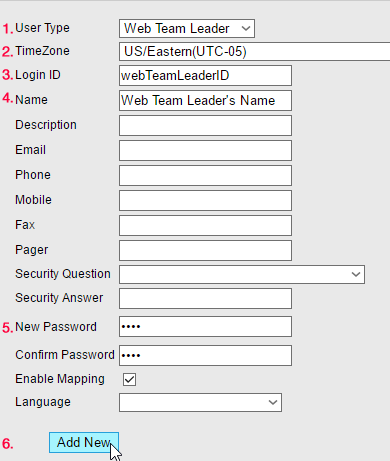
Examples of the user types we'll cover are:
- Administrator - For the people in charge of managing your account setup and all the other users on the system.
- Web Manager - For the people in charge of monitoring or aiding with punches specifically for office based staff. This focuses solely on Web Device Users, who clock in through the web based Timecard.
- Web User - For a day to day user of the system for monitoring mobile staff and generating reports but restricted access to the account settings.
- Web Team Leader - For the managers that need Administrator level access but only focusing on specific teams or users.
- Operations Manager - For managers that need to approve timesheets that they have assigned and employees have already signed off through the application.
You can also create Field Workers and Web Device Users from the Field Workers tab, but keep in mind that the main difference between those two user types and the ones covered in this post is that Field Workers and Web Device Users are employees who generate punches, while the following access the web portal for different Management purposes.
When you access the Manage Users section and click on Add New, this is what you will see when opening the User Type section:

Administrator
Administrator users have full access to all of the
information and settings in the account. They have access to the following
tabs:
- Home Lists
- Field Workers
- Web Devices
- Administration
- Reports
This is the typical Administrator screen:

Web User
Web Users have more limited access than the Administrators,
they can only see the following sections with some limitations stated below:
- Home Lists
- Field Workers
- Reports
They can review team member details but can’t make any
updates or manage any of the settings in the account. They can also do basic
edits on the punches.
For Web Users, this is what they will see when logging in:

Web Manager
A web manager will only be able to see the web device users.
They can assist with clocking in and out and handling task changes. These users
don’t have access to the map or reports, as the web users did.
Here is what the Web Manager screen looks like:

Web Team Leader
These users are a combination between Administrators and Web
Users. They are only able to view limited information and have no access to the
account settings except for a few options that are focused on specific users
and teams that were previously assigned when creating the profile.
They can access the following tabs:
- Home Lists
- Field Workers
- Administration
- Reports
On the Administration tab, this is what they will see:
These users are covered in detail in the Web Team Leader post, but here you have an example of the appearance of their options:

Operations Manager
Operations Managers are the most recent addition to the user
types, the can see the same things Web Team Leaders can except for two
differences:
- They can view the entire organization.
- Instead of being able to upload field workers on the Administration tab, they can use a feature called Approve Timesheets.
This is what an Operations Manager Administration tab looks
like:
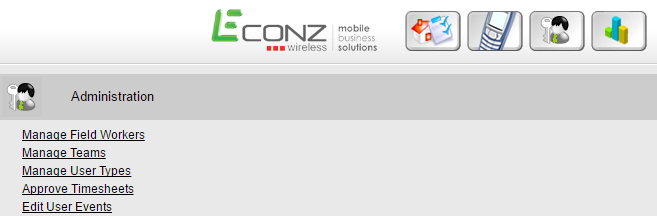
Operations Managers have the peculiarity that they can only view tasks assigned to them, and this is done through the Maintain Task/Customer List screen. You should go to an existing job and click on its ID, then you will see the Task Owner/Manager option, where you can select an Operations Manager from the dropdown menu:

By doing this, you will link that job to the Operations Manager and that person will be able to review and approve any timesheets that the employees have signed from the device.
The Approve Timesheets feature will be covered on a future post very soon.

By doing this, you will link that job to the Operations Manager and that person will be able to review and approve any timesheets that the employees have signed from the device.
The Approve Timesheets feature will be covered on a future post very soon.