Friday, December 11, 2020

Econz Timecard Forms Only Feature

We are excited to announce a new feature called "Forms Only App Version". This version of our Timecard GPS application is intended for customers that are looking to have their field staff to only capture Form data, instead of timesheet information.


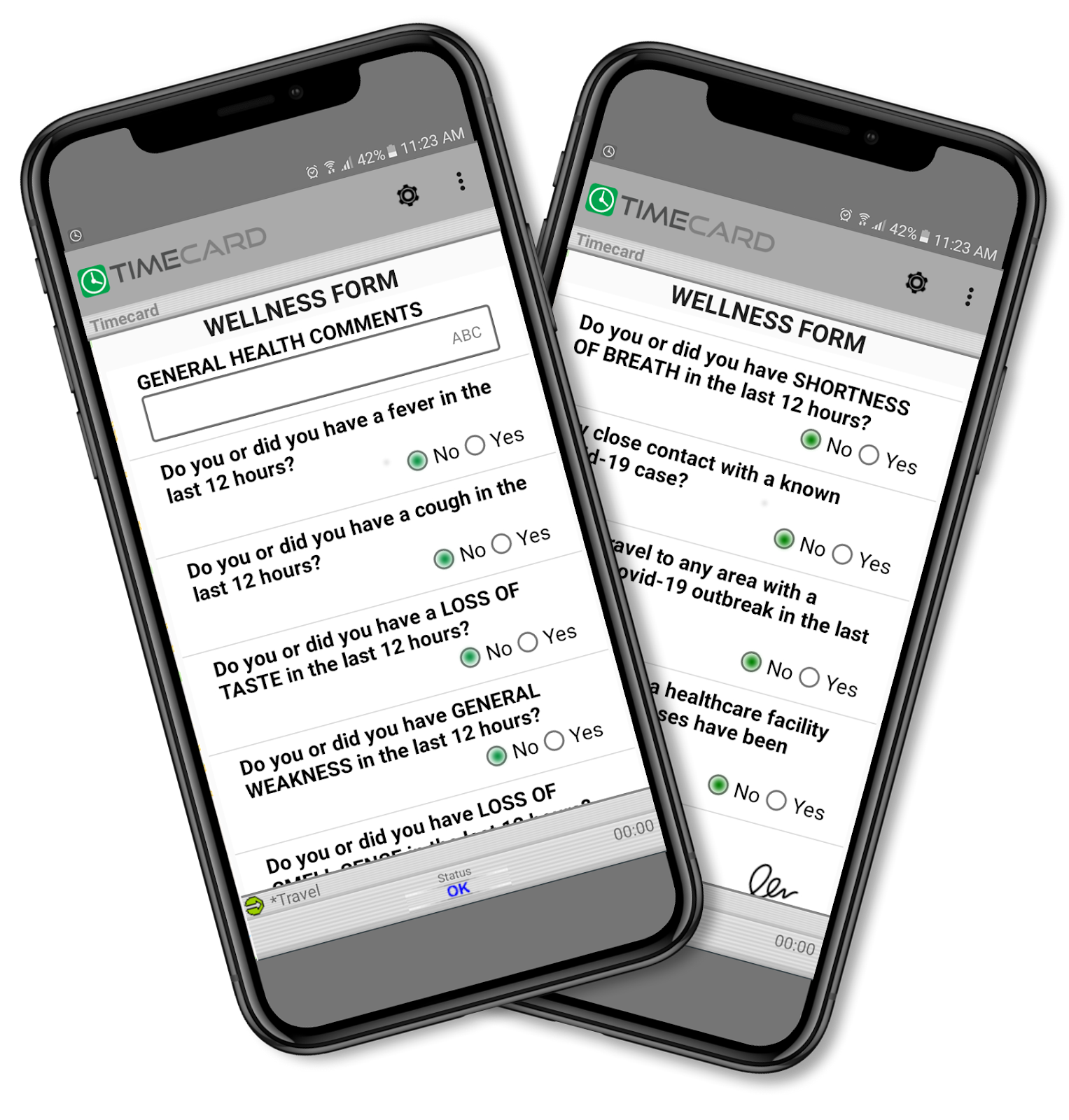
The Forms Only Version is ideal for any type of digital transformation collection, as shown in the following example of our Covid-19 form:


This feature includes Pictures, Videos, Text, Yes/No Questions, Signature Capture, List Selection, Decimals, Whole Numbers and even Monetary Values, among a variety of custom fields that you can add to the forms in order to collect the right data to make important business decisions.


To enable this functionality, all you need to do is follow the usual steps when creating a Field Worker, that is, going to the Field Workers tab and in this case, selecting "TimeCard Forms Only" as the Device Type. Then you'd enter the Device ID, Name, select "Field Worker" as the User Type, choose the appropriate time zone and set and confirm a Password. Once that is done, click on Add New at the bottom. 


When setting up the device , the interface will be that one of the Forms Only Version, no clock in or out buttons for this one ,you will be able to go straight to the Forms!


If you are interested in this forms-only application version please contact us so we can provide you with more information on how you can implement this for your company.


--Econz Team

Thursday, October 29, 2020

Dynamic Table Feature included on Forms

We are very proud to announce a wonderful new feature that gives our application an edge over the competition, we call it Dynamic Table on Forms.

Our Dynamic Table feature now enables a field worker to access additional information when completing a custom form/survey on a mobile device.

This new feature was created to allow field workers access to extra database information that can be loaded into the Timecard system’s form, directly as a CSV File.

To explain better how it works, take a look at the following table: 

The employee would select the "Order ID", then the application would fill out the rest of the fields automatically. This is particularly useful if you have a set of inventory items with predefined values or parameters and you don't need your staff to enter everything manually all the time. The dynamic table can provide information such as available products in the warehouse with codes and descriptions, a List of Work Orders with customer names, address, phone numbers, etc.

In this example, selecting any of the Order IDs would also grab the information for Name, Price, Quantity and Total, and show them as their own custom fields in any of the Custom Field Reports.  

This was designed not only to show the information back to the workers but also to use it as a selection and show this in our reports information.

Setting it up is very easy, just follow the usual Custom Field steps and select the Field Type called "Dynamic Table". Here is where you can click on "Browse" and upload the CSV file. Click on "Read Table" and then you can save the new field.


We made sure to make this into a convenient way to show and retrieve important information that is key for your business, we hope you take full advantage of this great feature that is included in our Timecard GPS package.


--Econz Team

Tuesday, October 20, 2020

Timecard Supervisor Timesheet Approval

Today we are glad to inform you that we have included a host of new enhancements to our Timecard Supervisor Application, which will enable Team Leaders to not only monitor their staff, but also approve Timesheets without the need to go to the Web Portal, all directly from the mobile app!

Let's go over each of them:


Review Employee Activity


Just by swiping from right to left on the screen, supervisors will be able to see the list of employees that have been assigned to them, as well as the last job, task, cost code or activity that was selected with Timecard GPS, along with the date and time for that specific entry.


Inspect Employee Location and Movement with Breadcrumb Trails


Starting from the Employee Task screen described previously, swipe again from right to left and you will be taken to the map screen, where you will see the employees' breadcrumb trails using Google Maps functionality.


Approve Timesheets:


Supervisors will now be able to perform an expedited timesheet approval right from the mobile app! This includes reviewing timesheets, approving and/or rejecting them and making edits if required. We will cover this specific functionality in a future step-by-step post.


The Timecard supervisor comes with all the features included in our Timecard GPS application plus the aforementioned Supervisor features, which means that a supervisor can collect punches, gather job pertaining data using Custom Fields and Forms while at the same time being able to monitor staff workers from the same application all through their mobile device.

Let us know in case you have any questions or comments.


--Econz Team

Wednesday, September 16, 2020

Two New Forms Feature Improvements: Video Capture and Radio Button

We are excited to announce that we have been working on some improvements to the forms features given feedback from our existing customers. These enhancements include the ability to now record a 30-second Video inside the form and being able to see Radio Buttons for answers based on Yes/No questions.


Radio Buttons

Given more and more of our customers are using our solution for Covid-19 Self-Assessment Surveys, the radio buttons from the custom fields is a new “customer favorite” as this feature allows field workers to answer Yes/No questions quickly and in a more convenient way.


Here’s an example view from the Wellness Form: 


The first step to enable this feature is to go to the Basic section in the Administration tab and selecting "Preferences". Find the option called "Render Yes/No field as radio buttons" and tick the checkbox as follows:


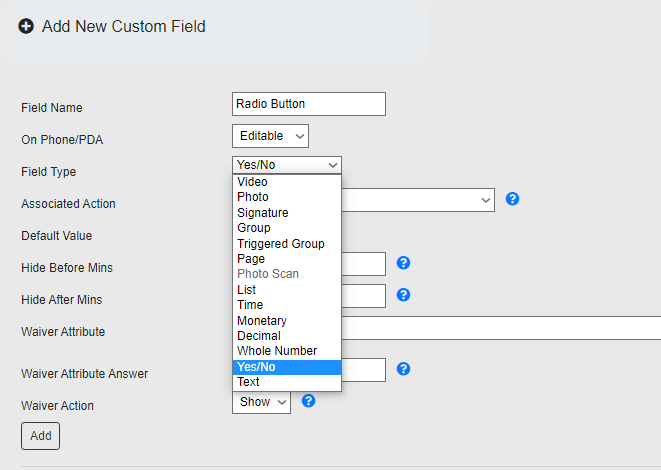
Scroll to the bottom and click on "Save" to apply the changes. Next, in the same "Basic" section, go to "Manage Custom Fields/Forms". Here make sure to select the Field Type "Yes/No" when creating the new Custom Field and click on Add. The process here is the same as always, to learn more about it, we have an article dedicated to working with Forms:


30 Seconds Video

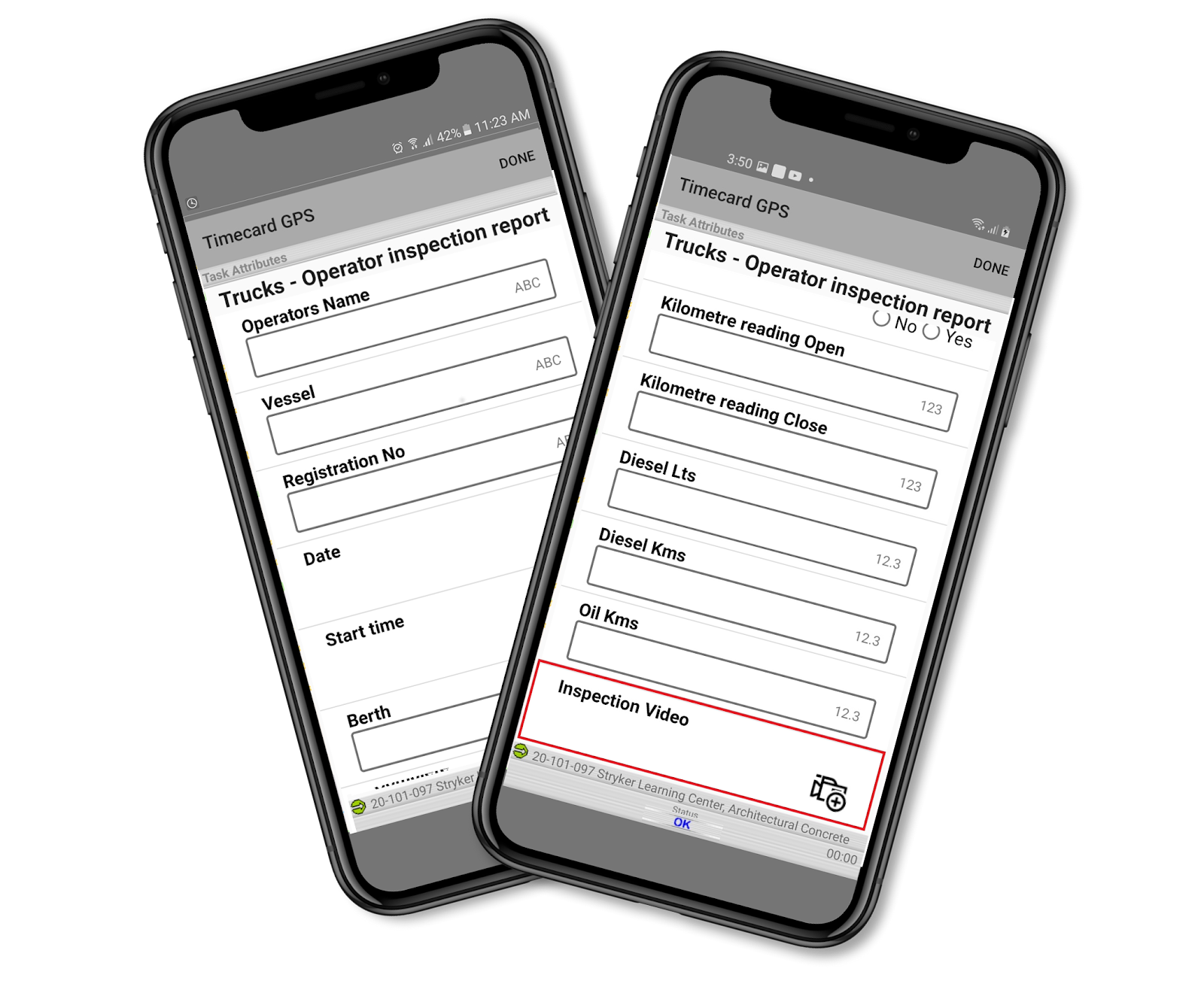
This feature gives the field user the capability to take a 30-second video inside a form to document customer visits or important things happening on the field.


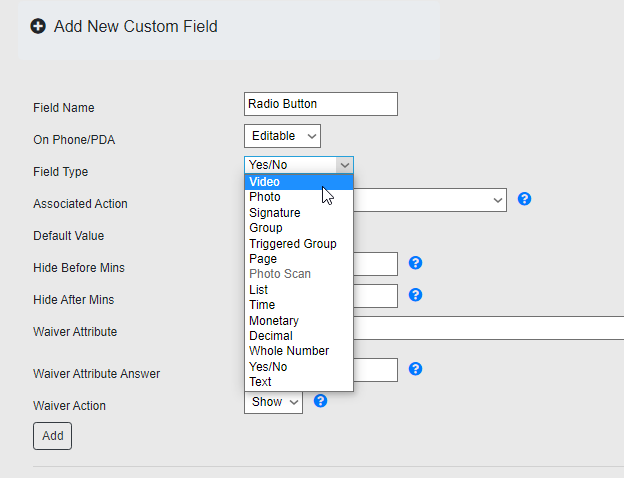
To create a Video Custom Field, the steps are the exact same as described in the previous point, that is, going to the "Manage Custom Fields/Forms" section and adding a new field in a form. In this case, make sure to select the Field Type called "Video" and click on "Add" once you are ready:


That's it for now! We hope you take advantage of these incredible new features, be on the lookout for new things that will be coming up.


--Econz Team 


Friday, June 5, 2020

COVID-19 Self-Assessment Form/Survey


During these challenging times, Econz Wireless has been assisting our customers with creating their own COVID-19 Self-Assessment Forms/Survey questions and PDF output. The idea behind this is to provide employers the necessary tools to document and keep track of their staff's health, and then take decisions according to the information provided by the field collaborators.

When using the COVID-19 Self-Assessment questions, the forms are set as required to be completed prior to clocking in or starting the shift. Below are a few examples of the type of questions that can be asked to your field employees:


The COVID-19 Self-Assessment features includes: 

  1. Required questions and digital signature to be completed prior to the field employee’s start of their shift.
  2. Real-time alerts when questions require managers/supervisors to be notified.
  3. Custom PDF output with company logo and digital signatures.
  4. Schedule PDF  to be sent to Managers/Supervisors/HR Directors daily, weekly or as needed.


If you wish to learn how this can be setup, make sure to check out our post on creating Custom Forms/Surveys.

Please reach out to our Customer Support Team in case you had any additional questions.

Until next time!


--Econz Team


Wednesday, March 4, 2020

"Timesheet Report With Totals"

We have just released a brand new report called "Timesheet Report With Totals"!

The main purpose for this one is to be able to view Tasks and Sub-Tasks sorted by date, as well as total day time, overtime and double time. This report also includes any breaks or meals that were taken while on a specific task and something worthy of pointing out, is that it will also tell you the specific day of the week for each task.

Here is a sample of this report:

(Click on image to enlarge)

This report includes CSV and PDF exports, as well as some upcoming editing features that we'll be talking about in a future blog post.

We hope you like it!


--Econz Team

Wednesday, February 26, 2020

Enhanced Functionality for Auto Task Changes

We have recently added an enhancement to the GPS Auto Task Change functionality where the application will determine if the user has been inside the area for a specific period of time. This can be very useful in cases where the auto task change does not need to be triggered immediately, for example, if the employee is just driving by the area.

To set this up, it's easier to add this rule to the Default SmartFence and apply it to all the tasks but of course, it can also be done per task individually. In this example, we'll use the Default SmartFence.

Go to the Administration tab and select "Rules, Action and Fences" in the Advanced section:


Next, select "Manage SmartFences":


Click to "Edit" the Default SmartFence:


Once inside the Default Fence, set the radius to the desired size and click on "Create New" within the Rules section:


On the following screen is where you will select the rule called "Inside Area for at least"; here we have set it to 3 minutes. This means that once the employee has entered the area, the app will start counting time and if it reaches the 3 minutes, then the task will be changed to what we setup in the next step:


Once this is done, click on "Create New Action" at the bottom:


Then, tick the "Automatic Field Device Event" option and select "Change Task" in the Event Type dropdown menu. Doing this will change the employee to the task of the area they are standing in for at least 3 minutes. If you wanted to change to a specific task, then you can tick the Set Task Info option to pick the specific task that you wish the employee to be changed to:


From here on, you can save it until you are back at the first screen (where you specify the radius). Here you have to click on "Add Existing" to apply the newly created rule to the default fence:


After this, the rule will be saved successfully!


If you have any questions, make sure to ask us in the comments section!


--Econz Team