Monday, June 11, 2018

Individual or Team Business Hours

We have implemented an enhancement to our Business Hours rules that will enable you to assign unique rules to specific employees or teams. They way it used to be was to assign Business Hours to the whole company, but now you can easily do it for individuals.

Start by going to the Administration tab and selecting "Manage Business Hours":


Then, on the next screen, you will find all the rules that you have created, if you wish to apply a rule for the whole company, you can always use the "Default" option. To create a new individual rule, click on the "Add" button:


On the next screen you will be able to select the Business Hours, make sure to give this rule a name in the "Description" field. Leave blank any of the time fields that don't apply. By clicking on the blank section on the "Select User(s)" and "Select Team(s)" fields, you will enable a dropdown menu where you can select the users and teams that apply to this rule.

When you are done, click on Save.


The next time you come to the Manage Business Hours section, you will find your newly created rule listed with the existing ones:


Let us know if you have any questions or comments!

--Econz Team

Monday, June 4, 2018

Timecard GPS: Premium Pay Answers Report

The Premium Pay Answers Report is a very useful new report that will enable employers using the Premium Pay features to have a detailed summary of what employees have answered on each question.

Here is a sample of the kind of data you will be able to retrieve:


Not only you will get each task and break sorted by the time when employees took each, but the last two columns will tell you if one of the answers chosen after finishing a break triggered the possibility of Premium Pay, as well as the reason why.

On the above example, we see that the employee took a Rest Break at 8:15 AM and a Meal Period at 12:00 PM. On both cases, the employee finished the rest/meal before the expected time, on the Rest Break, it was due to his/her own election, but on the Meal Period, it had to be ended due to work requirements, so it triggered the Premium Pay flag, as noted by the "Y" in the "Triggered?" column.

We hope this new tool enables you to keep better track of your employees Premium Pay related answers and that it serves as a complement to all the Premium Pay tools we have added along the way.

Feel free to leave us a comment if you have any question.

--Econz Team

Friday, May 18, 2018

Map Default Filters

Hi everyone,

Here we are with a quick update!

We have added a new feature that will allow you to setup the default filters for the Map. Originally, when you first logged in to the Administrator Portal, this is what you would normally see:


The filters are defaulted to the option that will allow you to see everyone at any time, if they are clocked in, clocked out or on break.

Now, we will have a new gear icon that will take you to the settings where you will be able to customize what filters are going to be used when you log into the website:


If you click on it, you will see this:


Notice how these are the same filters as in the Home screen, so pick the ones that suit you the best and click the "Save" button when you are ready.


Now the default option will be changed using your custom settings and whenever you log into the web portal, those are the ones that will be used from then on:


Make sure to use the "Filter" button to view the results, and feel free to adjust these settings whenever you need.

Let us know if you have any comments, we hope you like this new 'quality of life' improvement!

--Econz Team

Thursday, May 10, 2018

New Feature: Auto Task Search

We have just added a very interesting new feature that will enable your employees to do a cloud search of tasks that are on their own team, or that have been assigned to the "No Team" section.

This is very useful for those cases where companies have a large volume of tasks and constantly upload new projects. There may be the time when an employee can't seem to find a job but he/she knows for a fact that a Manager has uploaded it to the system.

In this example, there is a new project called "Dirt Candy", so the employee tries to find it using the local task search:


See how the task is not available, so all that needs to be done is tap "SEARCH" on the top right of the screen. This will automatically look for the typed task in the server (specifically on No Team or the employee's own team).


Since this was an existing job, then the application will find it without issues:


Now the employee can select it to punch in to that project:


Of course, under normal conditions your administrator should be keeping your phones task list up to date with all the tasks that you personally need many hours (or ideally days) before you actually need them, but if for any reason the task that you need is not present on your phone, you can use this feature as a backup to find what ever you need.  If your administrator has very recently updated your task list with new items (like in the last few minutes), you can use the "Connect" option (in the main application Menu) in order to quickly update your local tasks list to avoid needing to use this search feature.

Let us know your thoughts in the comments section!

--Econz Team

Tuesday, April 24, 2018

Edit User Events: Safe Edits Enhancement

Hello everyone,

Here we are back with some good news!

We have tightened the security in regards to editing tasks and made it safer so no changes are lost. In the past, if you had selected some jobs or changed times and then attempted to insert or delete a task or a break, if you proceeded with the insertion/deletion without saving the changes, those would be lost.

Now, if you click on Edit Task to change the existing punch:


...or also if you edit any of the times for the available punches:


...the buttons to insert or delete punches (which typically would take you to a new screen) will be grayed out. This means that the system will enforce the saving of the changes before attempting to do anything else.


This of course will save you time and worries, since we are making sure that you can safely make your edits without the loss of data, and at the same time, saving you any time that you could have lost re-editing time or tasks.

We hope you can get the best out of this enhancement, if you have any feedback, please let us know in the comments section. We always want to hear what you, our value customer, has to say.

--Econz Team

Tuesday, April 3, 2018

Office Administrators for Timesheet Approval

Today's topic will be about a new user type we added thanks to our valuable customers' feedback: the Office Administrator. We had covered the topic of Timesheet Signoff in a previous post and also went about explaining the available User Types that can be added through the Manage Users screen.

What happened is that there came the need to have a user that was able to approve timesheets without the need to assign each task to them, so the Office Admin works as a Payroll Admin with the added capability that you can filter exactly whose timesheets they will approve.

Let's see how to set this up, first go to the Administration tab:


Then click on "Manage Users" in the "Staff" section:


Once inside this screen, we will click on "Add New":


These are the options that you will require to setup an Office Admin:


Here is a summary of the mandatory fields:
  • User Type: "Office Admin".
  • TimeZone: the correct time zone for the user.
  • Login ID: a combination of the user's name and last name, keep in mind it's case sensitive.
  • Name: name of the Office Admin you are creating.
  • New/Confirm Password: use a secure password of your election, make sure to enter the same one on both fields.
  • Language: select the appropriate language.
Once you have this, click on "Add New".

Now you will notice that if you access the Office Admin's profile, there will be a few buttons at the bottom, the one we are looking for is called "Update Leader User Members".


The idea is that you can use the filters to add or remove users, so this Office Admin will only see the ones that have been assigned to him/her:


The first box is to add teams, the second one to include specific employees. When you are happy with your selection, click on "Save" and you will be set.

That's all for this time, let us know if you have any questions or comments!

--Econz Team


Wednesday, March 28, 2018

New Feature: GPS Based Tasks

Have you every wanted the application to show only tasks that are within a radius from where your employees are? Well, we have listened to your wishes and here we present you this wonderful new feature, GPS Based Tasks.

The first requirement is to upload your tasks with addresses, since these are going to be used to compare to the employees' current location.

Once you got that, then the rest is done within the application.

First, let's take a look at the list of tasks with this setting disabled, the employee would clock in as normal and see this:


That is the full list of tasks. But what happens if you have thousands of tasks but want to limit the list to just the ones they are close to? Here is where it starts getting interesting... Open the Menu in the main screen and select Settings:


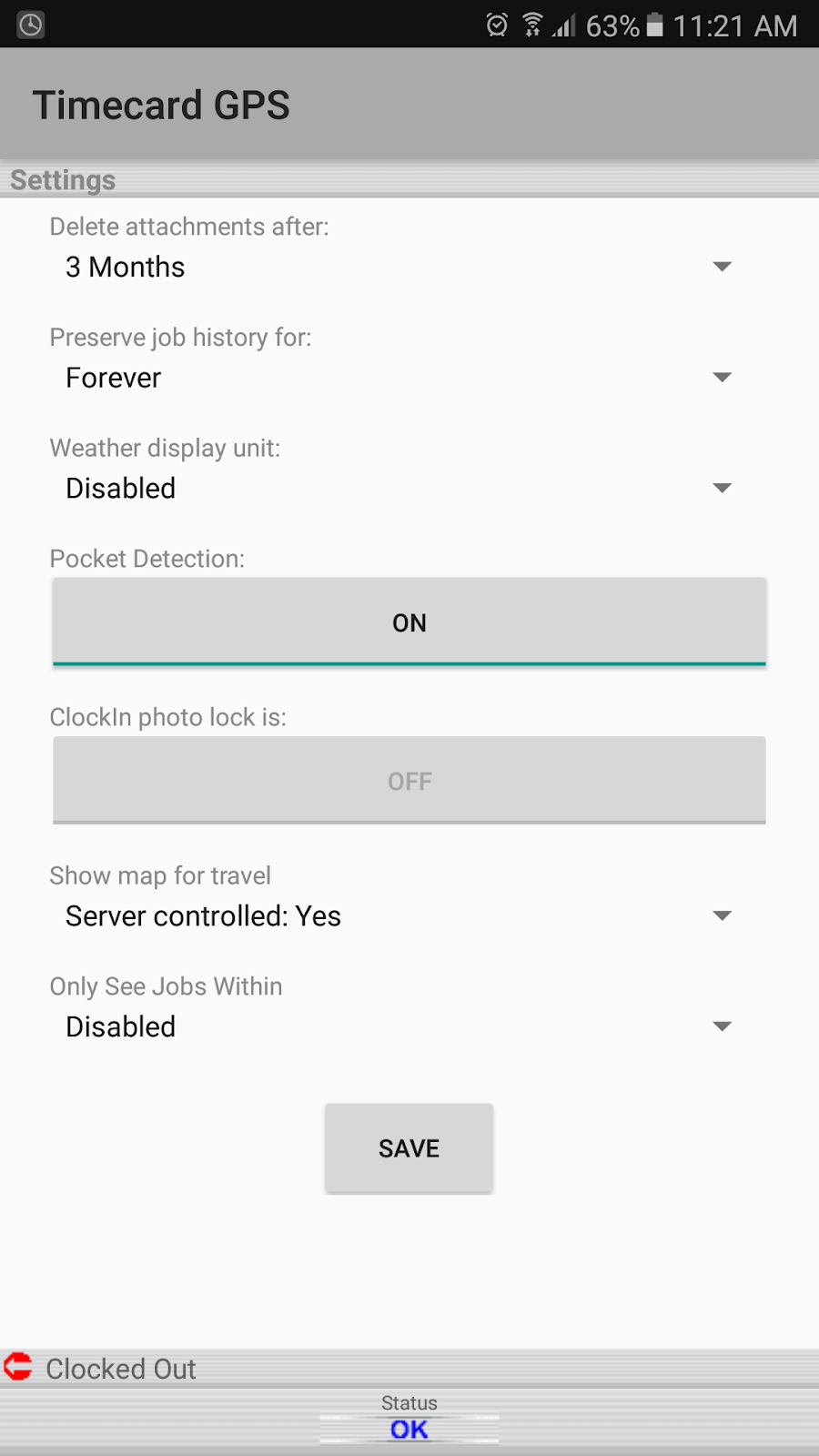
Once in the Settings, open the Menu again and select "Extras":


Notice at the bottom of the screen the option called "Only See Jobs Within". If you tap on its dropdown menu, you will be able to select either Miles or Kilometers to enable the GPS Based Tasks.


For this example, we are going to select "Miles". This will enable a space where you can type the radius (we want it to be 0.25 miles for now). You can also choose to hide any jobs that have no coordinates (this means jobs that were uploaded without any addresses), and finally, you can also set the amount of minutes that have to pass so the location is refreshed, which will update the tasks list.


When you go back, you can open the Menu and select Connect or open the tasks list and tap the Refresh icon on the top right (the icon with two circular arrows). Notice how the app will attempt to update your current location:


Now, when you try to clock in again (of course this will also work while you are clocked in), the tasks list will only show jobs that are within 0.25 miles:


You can adjust the radius according to your needs and this will affect how many tasks you can see:


Leave any questions you might have in the comments section, we hope you get the best out of this new feature!

--Econz Team