Tuesday, June 27, 2023

Maintain Task/Customer List For Workers: Manpower Edition

Hello everyone, today we are back with a new feature! Always thinking of better ways to make your life easier and help you be faster and more efficient at work, we have engineered a feature that will allow you to load tasks to individual users that haven't been added to a specific team. This is very useful because originally, if you wanted to assign specific projects to only one person, you had to create a team just for that one employee, load tasks for that person, and repeat the same process for every other staff member that needed it. While that still is pretty easy to do with our system, we enabled an even quicker method of taking care of that.

Let's see how to set it up! First, we go to the Administration tab and select "Preferences", from the "Basic" section.


Next, scroll to the bottom and tick the new "Has Field Worker Tasks" option, then click the Save button on the bottom left of the screen.


Once you go back to the main Administration section, you will notice a new entry called "Maintain Task/Customer List For Workers":


You will notice a familiar face, this section is pretty similar to the original "Maintain Task/Customer List", but instead of having a list of teams on the left column, we now have a list of Field Workers. From here, you will be able to load tasks for an employee, ideally one that is not assigned to a team, but keep in mind that if you do upload tasks for someone that belongs to a team, then these new tasks list will override the previous selection of jobs.


The beauty of this new functionality is that you don't even need to click on the names, you can use a CSV file and load the tasks and subtasks, just like you would do on multiple teams, but this time, it's on multiple employees. Open the dropdown menu and select "Load tasks/subtasks for specified employees using the Manpower CSV format".


This time, following the format from the example, we would use column A to put the employees' Device IDs, column B would have the Tasks and C, the SubTasks. same as uploading tasks to multiple teams, if you have a task with several subtasks, make sure to list all of the subtasks on column C, and to use the same task that these should go to on column B.

Click on the image to enlarge

The rest of the columns are optional, you can use them to set a job start and end time, address, and even smart fences if you wish so! Finally, find and select your file to upload it, append or replace the list to the existing tasks and save it. Now all of your employees can have their own individual set of tasks and subtasks!

That's all for now, stay tuned for some interesting announcements to come...!


--Econz Team

Monday, June 19, 2023

Adding Travel and Slipseat Codes for the Timesheet Approval Process

 Hello everyone! Today we would like to keep building upon the topic of pay codes that go hand in hand with our ADP integration. This time, we want to show you how to add Travel and Slipsear codes so they can be used for the timesheet approval process. As you are probably aware, using different specific codes for timesheets will enable you to create more accurate timesheets and abide by the different regulations depending on your location.


To set this up, we would start by going to the "Approve Timesheets" section within the Administration tab.


On the next step, we need to select the option to submit the timesheet for the employee, please note that this option is only available if the timesheet hasn't been submitted from the application on the device).

Click on image to enlarge

Once the timesheet has been submitted, make sure to select the correct code on the "Pay Code Entries" section, which means SSP for "Slipseat Pay", and TRP for "Travel Pay". Then, you need to select whether it's an amount of dollars or a value of hours. Check out the following examples for both types of values:

SSP code with amount of USD


TRP code with amount of USD


TRP code with amount of Hours

Then, you can approve the timesheet and click the "Save" button to complete it.

You can tick the checkbox and approve all tasks in the timesheet at once.


Then click the "Save" button

That's all for this time, stay tuned for more exciting updates!


--Econz Team

Friday, June 2, 2023

New User Type: the Junior Office Admin

Hello everyone! Today we want to tell you about a new user type we have introduced to the list of different access types we provide to Web Portal Users. "Why so many?", you might ask? Well, flexibility is the name of the game. We are always thinking of ways to improve our system and provide as much flexibility to companies as possible, which means bringing different types of administrator rights depending on multiple needs.

Sometimes you may want to have someone just manage timesheets and nothing else. Other times, you want just that but limit the visibility to certain teams or users. We even have an option to assign specific projects to Managers so they can approve timesheets for the projects they oversee, regardless of the team the user belongs to. With these examples, you can see the value of having different access options for different scenarios. It's the same as in an operating system like Linux, where you can manage permissions and ownership for users, groups, and all others to resources such as directories and files; by providing levels of access, you are enforcing a tighter security to your valuable company information.

With that being said, the protagonist to today's tale is the "Junior Office Admin". As the title implies, these are a variant of the Office Admin user type, which, as you might remember, is able to approve timesheets for everyone, even being able to filter exactly whose timesheets they will approve. The main difference, and what makes it "junior" in this scenario, is that this user will not be able to remove users from the system; something that usually requires more rank or responsibility to perform.

Setting it up is very easy! We start by going to the Administration tab and selecting "Manage Users", within the Staff section:


Then, click the "Add New" button on the top left of the screen:


On the next section, you can fill out the information for that person's profile, here is an example:


After you are done and have entered a secure password, click the "Add New" button on the bottom left of the screen:


After that, the profile will have been created and it's ready for use:


That's all for now, stay tuned for more exciting news!


--Econz Team

Monday, April 24, 2023

Exporting ADP Batch as a CSV File

Following with the topic of the exciting ADP Integration, today we want to show you how you can now keep a backup of your batch payroll by exporting it to a CSV file. Of course, make sure to check our previous post for a more in depth article related to this topic).

Our starting point will be right after the employees have approved their timesheets from the Timecard GPS app and then the Managers would also approve them via the Web Portal. As soon as the batch has been successfully created, we can go to the Administration portal, and then access the "Submit Timesheets for ADP Payroll Batch" section within the "Basic" section:


Once inside, we will select our appropriate Payroll Group, which will vary from one organization to another, then the Period of the timesheet that you would like to export and click the "Filter" button:


Doing that will display the desired results, in this example we are showing the timesheets that were sent for a single employee from our Timecard GPS system into ADP. After this, we would click the Download button:


That will start the download of the file to your computer, this process will vary depending on the browser and browser settings you are using, but in most cases you will either select where to download the file, or it will default to the Downloads folder.


Once we open the file, we can view the generated data in CSV format, which will be very useful to create a backup of all the batch transfers that you are doing (e.g. maybe you want them for offline access or in a printable format).


That's it for today, stay tuned for upcoming updates on more exciting features our team has been working on to make your life easier...!


--Econz Team

Tuesday, April 18, 2023

Email Alerts for Leave Requests

Coming back to a previous topic where we discussed Leave Requests, today we are bringing you details of more functionality which will make handling the PTO process more robust. As we all know, these are very busy times, and sometimes we need some help from the systems we use to keep track of what's going on, so in the case of the Human Resources team, handling PTO requests promptly is critical.

For this reason, Timecard GPS has a feature that will allow Leave Admins to receive emails as soon as a request has been sent from a device. It's very easy to set up, but as a requisite, make sure to follow the steps on this post to assign a Leave Admin to an employee prior to completing this next step.

With that out of the way, go to the Administration tab and select "Manage Users" within the "Staff" section:


Then, find the name of the Admin user and update the profile with the contact details, specifically the email portion. Also, very important, make sure to tick the "Notify Via Email" box:


Once that is done, the employee can request PTO with the application, which will trigger an email alert to the Manager in charge of reviewing that staff member's request:


Then the person in charge can go to the Administration portal and manage the Leave Request:

(Click on the image to enlarge)

That's all for now, we hope you like this feature as much as we do! Let us know if you have any questions or comments below.


--Econz Team


Friday, March 24, 2023

Allocating all time to clock in day for overnight shifts

Hello everyone, we have a very interesting topic today. This is intended for those companies whose employees work during the night, so it's expected that their shifts overlap two separate days.

By using this new feature, our system will provide you with overtime and extra time calculations based on the whole shift that was clocked in, regardless of if the employees started one day and finished on the next one.

The idea here is that in order to provide accurate timesheet information, if an employee worked overtime, for example, then that time would be allocated to the one day shift (taking the hours from the moment the system registered a clock in, until the clock out). This is, as opposed to cutting the days from 12:00 AM until clock out, and then the clock in the next evening until the following 12:00 AM.

This is very important, because on overnight staff there can be moments where there is OT right in the payroll cutoff time, so applying this setting can be the difference of when an employee would get the correct amount of paid hours.

Also, one more thing to consider is that hourly employees might need to attend during different scheduled times, so it's crucial that the correct amount of hours is allocated to the right shift, instead of placing hours incorrectly by following the Calendar days. 

To set this up, start from the Administration tab and go to "Manage Overtime Rules" in the Payroll section:


Then, select the User Type you wish to manage the OT rules for and click on "Manage":


In this example, we are adding a new rule, so we need to tick the checkbox for the option "Allocate all time to clock in day":


That's all you need! From the start date that the rule is created for and onwards, time will be automatically calculated for overnight employees, including overtime and extra time.

Hope you like this enhancement, let us know if you have any questions or comments below.


Until next time...!


--Econz Team

Thursday, March 9, 2023

New Feature: Moving Tasks Between Teams

Sometimes, you just need to move tasks from one team to another. Maybe the company underwent some staff changes and a new team will take some tasks that another was working on and will no longer need. Perhaps, a person in charge of managing tasks might have uploaded them to the wrong team and you just need a quick fix. If any of those scenarios sound familiar, this is the feature for you!

We have added new functionality that will enable you to move tasks from one team to another. Originally, you would to need copy the tasks to the new team, and then delete the original tasks. In some cases, you may have hundreds of specific tasks that need to be moved, so it can take a lot of time to get rid of them, so we thought of a good way to make your life easier, as we always do.

For this, you would go to the "Maintain Task/Customer List" section in the Administration tab:


Then, let's say we have a few selected tasks from our "Region B" team, that need to be added to our "Region C" team. What we do, is just tick the tasks that we want to move as a first step:


Then, while having selected the tasks and seeing them checked on the screen, we select the team we want to move them to, in this case, "Region C":


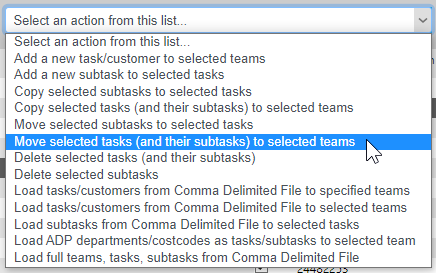
Next, we open the dropdown menu and select the appropriate option:


Note that, we are able to do the same but moving subtasks from a task to another, within the same team. So, after selecting to move the selected tasks, we can verify the original team where the jobs where moved from and see that they are no longer there:


And finally, we confirm in our "Region C" team, that the new tasks have been populated:


That's all for this time, stay tuned for more exciting news!


--Econz Team